

How to Download Kuaishou Videos on iPhone — Free, No Watermark, No App
To download Kuaishou videos on iPhone, the fastest and most reliable method is using SaveVidClips.com — a free, browser-based Kuaishou downloader that works directly in Safari or Chrome on any iPhone. No app installation, no account, no watermark. Just copy the video link from the Kuaishou or Kwai app, paste it into SaveVidClips, select your quality, and save.
⬩Key Takeaways
What Is Kuaishou and Why Do People Want to Save Its Videos?
Kuaishou, known internationally as Kwai, is a Chinese short-form video and live-streaming platform developed by Beijing Kuaishou Technology Co., Ltd. Founded in 2011 by Su Hua and Cheng Yixiao, it originally launched as a GIF-sharing app before pivoting to video in 2013. Today it has over 700 million monthly active users worldwide — rivaling TikTok and YouTube Shorts in both reach and engagement.
The platform is especially popular in rural China, Southeast Asia, Brazil, and the Middle East, where Kwai has grown rapidly as a TikTok alternative. Content spans everything from comedy clips and daily-life vlogs to e-commerce livestreams and music videos — all in vertical short-form format similar to Instagram Reels.
People want to download Kuaishou videos for all kinds of reasons: saving a tutorial for offline reference, archiving a funny clip, rewatching content without an internet connection, or simply keeping a favorite creator’s video before it gets deleted. Whatever the reason, downloading on iPhone takes a few specific steps — because iOS works differently from Android, and most guides skip the parts that actually matter. If you want to download Kuaishou videos on your PC/Laptop, Visit the guide: Downlaod kuaishou videos on PC
Why Downloading Kuaishou Videos on iPhone Is Different From Android!
Downloading a video on Android takes two taps. On iPhone, it takes five — and if you do not know the exact steps, you will either end up with nothing in your Photos app or a file stuck in your Downloads folder that you cannot find.
This is not a problem with the downloader. It is how Apple built iOS. However, if you want a complete guide on how to download Kuaishou audio on Android, visit How to download Kuaishou audio and convert to mp3
iPhone does not allow browsers to save video files directly to your Photos library the way Android does. When you download a video on iPhone, it first lands in the Files app — not Photos. From there, you have to move it manually. If no one told you this, you probably thought the download failed. It did not.
There is also the Safari banner issue. When a download starts in Safari on iOS, a small notification appears at the top of the screen for roughly two seconds. If you miss it, the download runs silently in the background and you have no idea where it went.
This guide covers every step — including the parts that other guides skip. By the end, you will know exactly how to get a Kuaishou or Kwai video from the app into your iPhone Camera Roll, without a watermark, without installing anything, and without paying for anything. If you are using a browser and need to pick colors or inspect UI elements, you can use this color picker extension to easily grab colors from any website.
What You Need Before You Start
Complete checklist — no account, no software, no payment required
Open the video in the app, tap the Share button, then select Copy Link. Browser URLs from Kuaishou.com will not work — the downloader requires the in-app share link only.
Open the video in the app, tap the Share button, then select Copy Link. Browser URLs will not work — the downloader requires the in-app share link only.
This guide works on iOS 13 and all newer versions including iOS 17 and iOS 18. Running an older version? Update via Settings → General → Software Update before continuing.
This guide works on iOS 13 through iOS 18. Running older iOS? Update via Settings → General → Software Update before continuing.
Safari is pre-installed on every iPhone and is the most straightforward path. Chrome works too — the steps differ slightly but this guide covers both methods in full detail below.
Safari is pre-installed and the most straightforward path. Chrome works too — both methods are fully covered in this guide.
No account to create, no software or app to install, and no payment of any kind. Paste your link and download immediately — that is the entire process.
No account to create, no software to install, and no payment required. Paste your link and download immediately — that is the entire process.
Download Kuaishou Videos on iPhone Using SaveVidClips (Recommended)
SaveVidClips.com is a purpose-built Kuaishou and Kwai video downloader that works entirely inside your iPhone browser — no app to install, no account to create, nothing to pay. It fetches the original video directly from Kuaishou’s own servers, which means you get the exact file the creator uploaded: full HD or 4K quality, no watermark, no compression.
The tool supports all Kuaishou and Kwai link formats — short share links like https://v.kuaishou.com/xxxxxxx, Kwai international links like https://www.kwai.com/video/xxxxxxx, and direct desktop URLs. You do not need to modify or convert the link — paste it as-is and the tool handles the rest.

Step-by-Step: Safari Method (Recommended for iPhone)
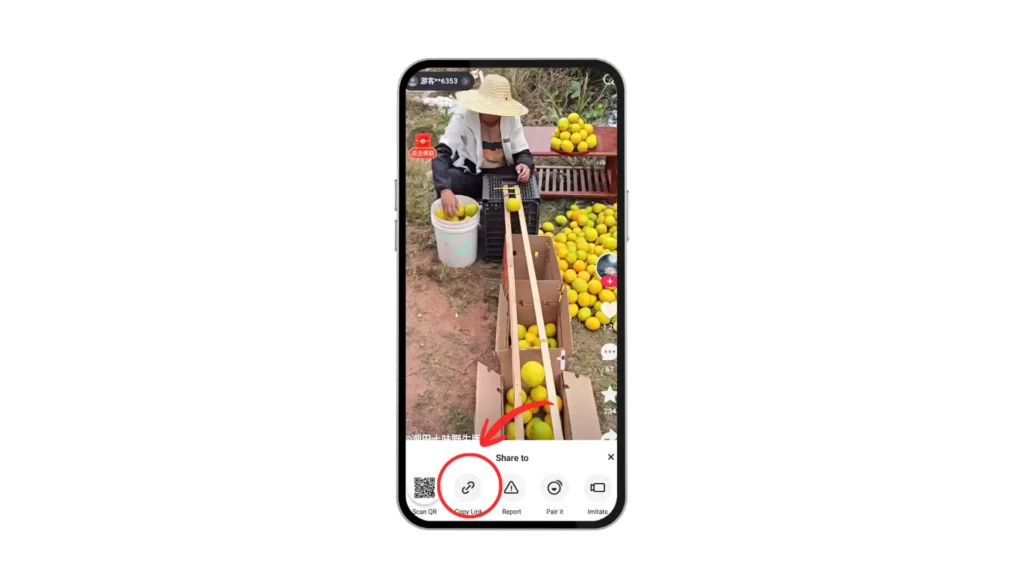
Open the Kuaishou or Kwai app on your iPhone and find the video you want to download. Tap the Share button — it looks like an arrow pointing right and sits on the right side of the video screen. A share menu will slide up from the bottom. From that menu, tap Copy Link.
The link is now copied to your iPhone clipboard. You will not see anything happen on screen — that is normal. The link is saved silently and ready to paste.
Important: Do not copy the URL from your browser address bar while watching a Kuaishou video in Safari or Chrome. That link format is sometimes different and may not process correctly. Always use the Copy Link option inside the Kuaishou or Kwai app itself.
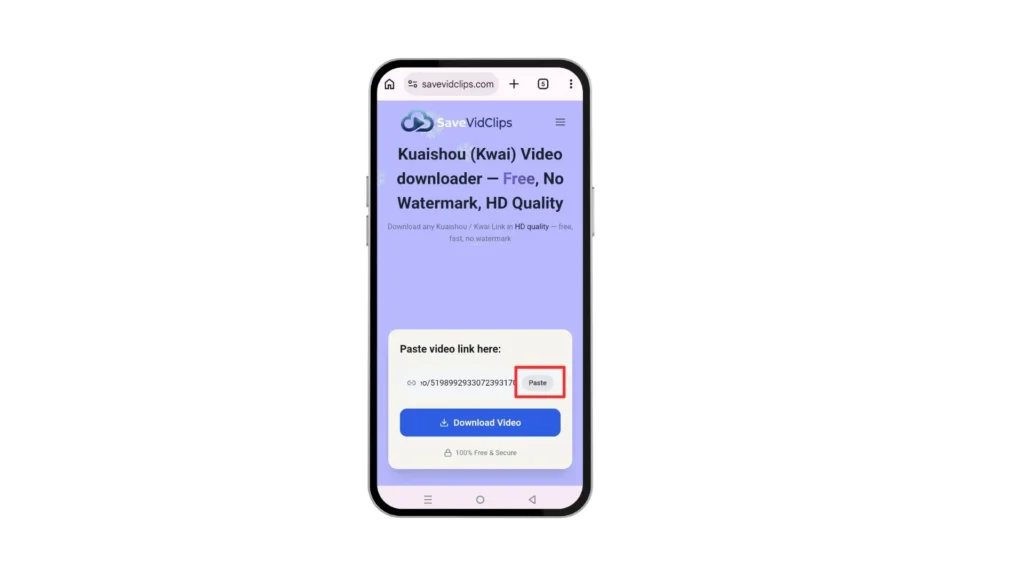
Close the Kuaishou app and open Safari on your iPhone. In the address bar at the top, type our website address, savevidclips.com.com and open the Kuaishou downloader page. Make sure you are opening it in Safari specifically — not inside the Kuaishou app’s built-in browser, which does not support file downloads.Once the page loads, you will see the download tool with a text box at the top of the page.
Tap the text box in the downloader tool. Your iPhone keyboard will appear. Press and hold inside the text box for one second — a small menu will pop up with a Paste option. Tap Paste, and your copied Kuaishou or Kwai link will appear in the box and tap the Download button
This is the step that most iPhone users miss — and it is the reason people think the download failed when it actually did not.
When you tap your chosen quality option, Safari will show a small notification banner at the very top of your screen. It appears for about two seconds and says something like “kuaishou-video.mp4 — 1 item” with a small download icon. This is Safari confirming that the download has started.
If you miss this banner, do not panic. The download is still running in the background. To check it, tap the download icon — it looks like an arrow pointing down inside a circle — in the Safari address bar. This opens Safari’s download manager, where you can see your download progress in real time.
Wait for the progress bar to complete before moving to the next step. Download time depends on video length and your internet connection — most Kuaishou videos download in under 15 seconds on a standard 4G or WiFi connection.
Step 5 — Move the Video from Files App to Photos App
This is the final step — and the one that no other guide explains properly.
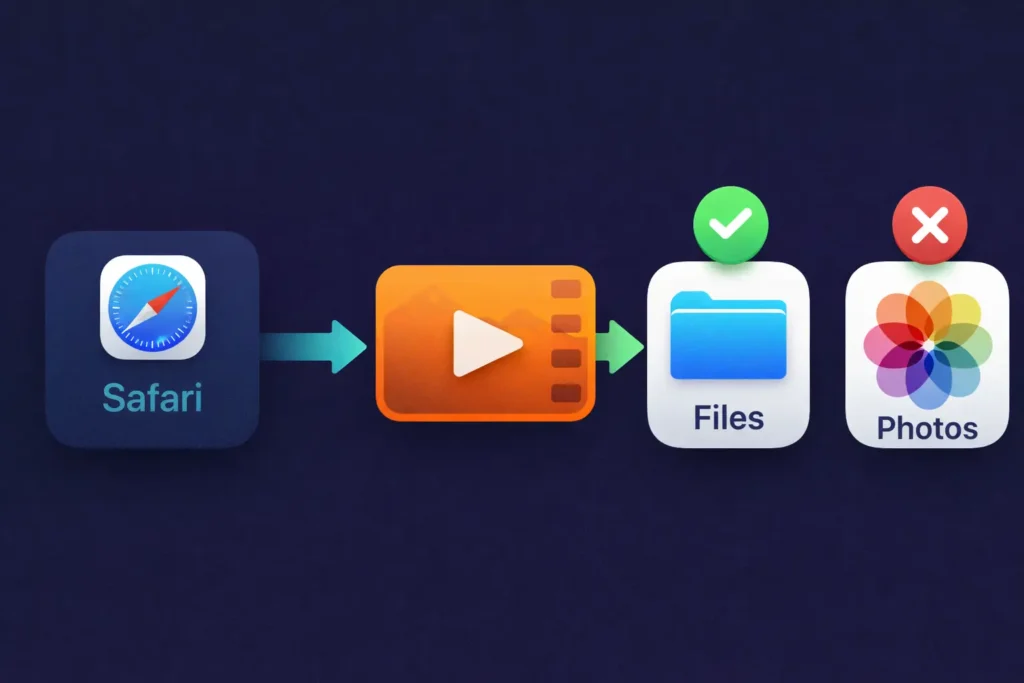
When Safari finishes downloading, the video is saved to your Files app, not your Photos app. This is an iOS limitation — Safari cannot write video files directly to your Camera Roll. You have to move it manually. Here is exactly how:
Open the Files app on your iPhone. Tap On My iPhone from the left sidebar, then open the Downloads folder. You will find your Kuaishou video here with its original filename.
Press and hold the video file for one second. A context menu will appear. Tap Share from that menu. Your iPhone share sheet will open. Scroll through the options and tap Save Video. The video will now be copied directly to your iPhone Camera Roll inside the Photos app.
Open your Photos app and go to Recents — your downloaded Kuaishou or Kwai video will be there, in full quality, without any watermark.
Download Kuaishou Videos on iPhone Using Chrome
Chrome on iPhone works differently from Safari when it comes to file downloads. Safari has a built-in download manager — Chrome does not handle video files the same way. However, there is a reliable workaround that Chrome users can follow, and it takes only a few extra taps compared to the Safari method.
If Safari is already on your iPhone, we recommend using Method 1 above. But if Chrome is your default browser or you simply prefer it, this method works just as well.
Step 1 — Copy the Video Link from Kuaishou or Kwai App
This step is identical to the Safari method. Open the Kuaishou or Kwai app, find the video, tap the Share button, and select Copy Link. The link is now on your clipboard and ready to paste.
Open Google Chrome on your iPhone and navigate to our Kuaishou downloader page. The tool will load exactly the same as it does in Safari. Tap the text box, press and hold, then tap Paste to insert your copied link. Tap the Download button and wait 3 to 5 seconds for the video to process.
Select your preferred quality from the menu — SD, HD, or 4K — depending on what is available for that video.
Here is where Chrome differs from Safari. Instead of triggering a file download directly, Chrome on iPhone will either open the video in a new tab or prompt you with a preview screen.
If the video opens in a new tab, press and hold anywhere on the video. A menu will appear from the bottom of your screen. Tap Save to Photos or Save Video, depending on your iOS version. The video will save directly to your iPhone Camera Roll without needing to go through the Files app first.
If Chrome shows a preview screen instead, look for the Share icon at the bottom of the screen, tap it, and then select Save Video from the share sheet. Your video will be saved to Photos immediately.
Unlike Safari, Chrome on iPhone saves the video directly to your Photos app — you do not need to manually move it from the Files app.
Use the Built-In Save Feature Inside the Kuaishou App
When it is available, the in-app save option is the quickest path — no external tools needed.
- Open the Kuaishou or Kwai app on your iPhone.
- Find the video you want.
- Tap the Share icon on the right side of the screen.
- Look for “Save Video” or “Download” in the share menu.
- Tap it — the video saves directly to your Camera Roll.
The Catch: many creators disable this option on their videos. If the Save Video button is missing or grayed out, it means the creator has restricted downloads. In that case, SaveVidClips.com is your best alternative — it works even when the in-app option is locked. Also check that the Kuaishou app has Photos access: go to Settings → Kuaishou → Photos and set it to “All Photos.”
Use iOS Shortcuts to Automate Kuaishou Downloads
For users who download Kuaishou videos regularly, the iOS Shortcuts app (built into iOS 13 and later) can automate the entire process into a two-tap workflow.
This method is useful for power users who want a faster daily workflow. For the actual downloading, pairing the shortcut with SaveVidClips.com gives you the best combination of speed and quality.
Comparing All Methods: Which One Is Right for You?
| Method | Ease of Use | Needs Extra App | Works When In-App Button Is Disabled | No Watermark |
|---|---|---|---|---|
|
SaveVidClips (Safari) BEST OVERALL | ★★★★★ | No | ✓ Yes | ✓ Yes |
|
SaveVidClips (Chrome) ALTERNATIVE | ★★★★★ | No | ✓ Yes | ✓ Yes |
| Kuaishou In-App Save | ★★★★★ | No | ✕ No | ✕ Sometimes |
| iOS Shortcuts | ★★★☆☆ | No (Built-in) | ✓ Yes | ✓ Sometimes |
| Documents by Readdle | ★★★☆☆ | Yes (Free) | ✓ Yes | ✓ Yes |
Which Browser Should You Use — Safari or Chrome?
For most iPhone users, Safari is the better choice for downloading Kuaishou and Kwai videos. It has a dedicated download manager, handles the file properly, and gives you a clear progress indicator so you always know where your download stands.
Use Chrome if Safari is not available on your device for any reason, or if you have experienced issues with the Safari method on your specific iPhone model. Both methods deliver the same final result — a full-quality, watermark-free Kuaishou or Kwai video saved to your iPhone.
⬩➤ How to Download Kuaishou Videos on iPad
Everything covered in the iPhone guide above applies to iPad as well — the same Safari method, the same Files app step, and the same Chrome workaround. However, the iPad experience has a few differences worth knowing because the screen layout and navigation are slightly different on iPadOS compared to iOS.
How the iPad Screen Layout Affects the Download Process?
On iPad, Safari runs in a full desktop-style layout. The address bar sits at the top, and the download manager icon appears in the top right corner of the browser — not inside the address bar like on iPhone. When your Kuaishou video download starts, the progress indicator appears in the top right corner as a small circular icon.
The Kuaishou or Kwai app on iPad also looks different. The Share button is still present, but its position on the video screen may vary depending on whether you are using the iPhone version of the Kwai app or the iPad-optimized layout. In both cases, tapping Share and then Copy Link works the same way.
Step by Step — Downloading on iPad Using Safari
Open the Kuaishou or Kwai app on your iPad and copy the video link using the Share button exactly as described in Method 1 above. Open Safari on your iPad and go to our Kuaishou downloader page. Paste the link into the download box and tap Download.
When the quality options appear, select your preferred quality. Safari will begin the download immediately. On iPad, the download progress appears as a small circular icon in the top right corner of Safari — tap it to see the download progress bar.Once the download is complete, open the Files app on your iPad. Go to On My iPad, then open the Downloads folder. Press and hold your Kuaishou video file, tap Share, and then tap Save Video. The video will move to your iPad Photos app inside the Camera Roll.
iPad Models That Support This Method
This download method works on all iPad models running iPadOS 13 or later. This includes iPad Air, iPad Mini, iPad Pro, and the standard iPad lineup. If your iPad is running an older version of iPadOS, go to Settings — General — Software Update and install the latest available update before following this guide.
There is no difference in the download quality between iPhone and iPad — both devices receive the same HD or 4K file directly from Kuaishou servers without any compression or watermark.
⬩➤ Where Does the Downloaded Kuaishou Video Go on iPhone?
This is the most common question iPhone users have after their first download — and it causes more confusion than any other part of the process. The short answer is: your video does not go to Photos automatically. Here is exactly where it goes and how to find it.
The Video Goes to Files App First — Not Photos
When you download a Kuaishou or Kwai video through Safari on iPhone, iOS saves it to the Files app by default. This is an Apple system decision — Safari treats downloaded video files the same way it treats any other downloaded file, like a PDF or a ZIP. It goes to your Downloads folder inside Files, not to your Camera Roll.
This catches almost every first-time iPhone downloader off guard. The download completes successfully, the progress bar finishes, and then nothing appears in Photos. The video is not lost. It is sitting in Files, waiting for you to move it.
Open the Files app on your iPhone. Tap Browse at the bottom if you are not already on the main screen. Tap On My iPhone, then open the Downloads folder. Your Kuaishou video will be there with a filename that usually looks like a string of numbers ending in .mp4.
How to Move the Video to Your Photos App
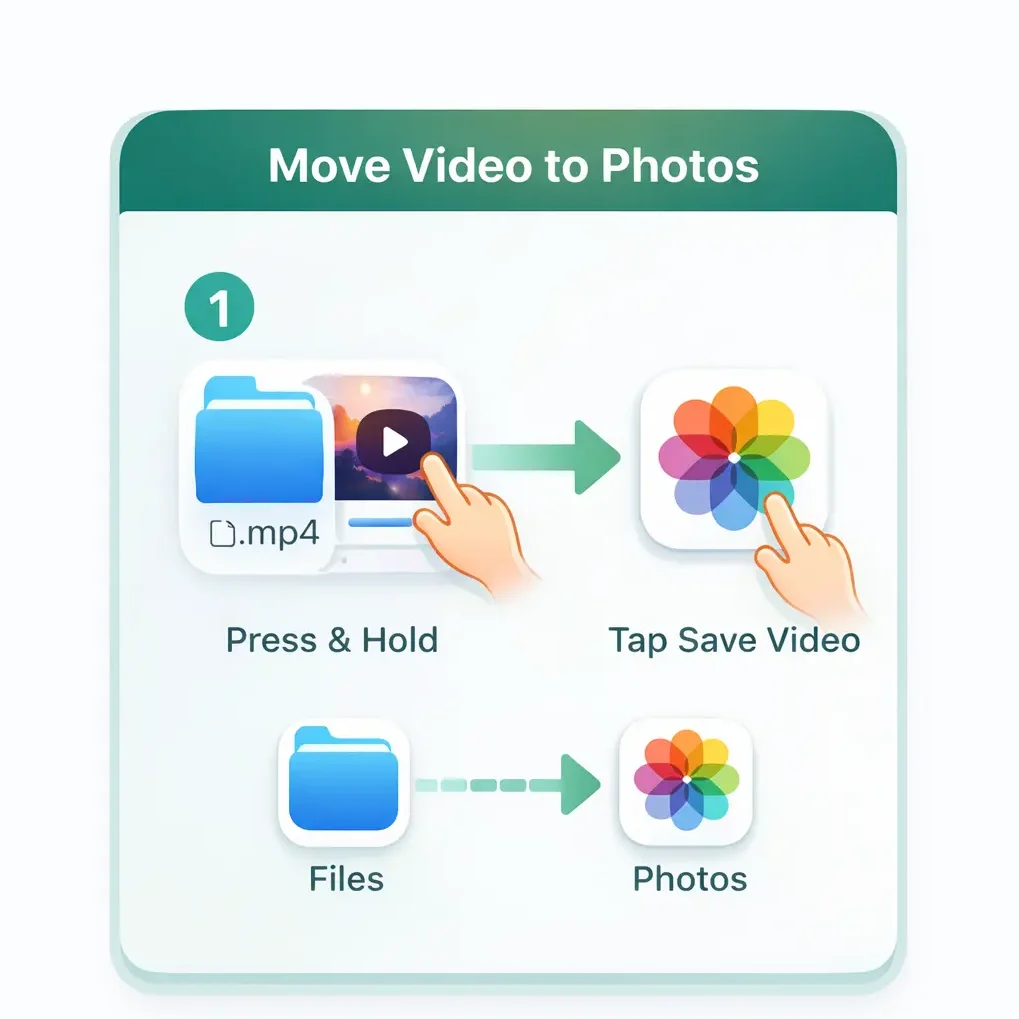
Once you locate the video in the Files app’s Downloads folder, moving it to Photos takes four taps:
Press and grgrgrhold the video file for one second until a context menu appears. Tap Share from the menu. Your iPhone share sheet will slide up. Scroll through the icons until you see Save Video — it has a Photos app icon next to it. Tap Save Video.The video is now in your iPhone Camera Roll. Open the Photos app, go to Recents, and it will be the most recent item at the bottom of your library. Full quality, no watermark, exactly as the creator uploaded it to Kuaishou.
Tips for Managing Downloaded Kuaishou Videos on iPhone
Create a Dedicated Album
Make a “Kuaishou” album inside Photos so your downloaded videos stay organized and easy to find later.
Use iCloud Drive for Backups
If you download lots of videos, back them up to iCloud Drive or transfer them to your Mac using AirDrop to save iPhone storage.
Convert Files When Needed
SaveVidClips provides standard MP4 files that work perfectly on iPhone. If another source gives a different format, use CloudConvert to convert it.
Check Available Storage
Short videos can quickly fill up storage. Visit Settings → General → iPhone Storage before downloading large batches of videos.
What If You Cannot find the Downloads Folder in Files?
If you open the Files app and do not see an On My iPhone option in the sidebar, it means iCloud Drive may be set as your default storage location. In that case, tap iCloud Drive instead and look for a Downloads folder there. Your video will be in whichever location Safari is set to save downloads to on your device.To check and change your Safari download location, go to Settings — Safari — Downloads on your iPhone. You can set it to either iCloud Drive or On My iPhone based on your preference. For most users, On My iPhone is the better choice as it does not use iCloud storage.
⬩➤Is It Safe to Download Kuaishou Videos on iPhone?
Fair question — and one worth answering properly rather than just saying “yes, totally safe” and moving on.
What Actually Happens When You Use the Downloader
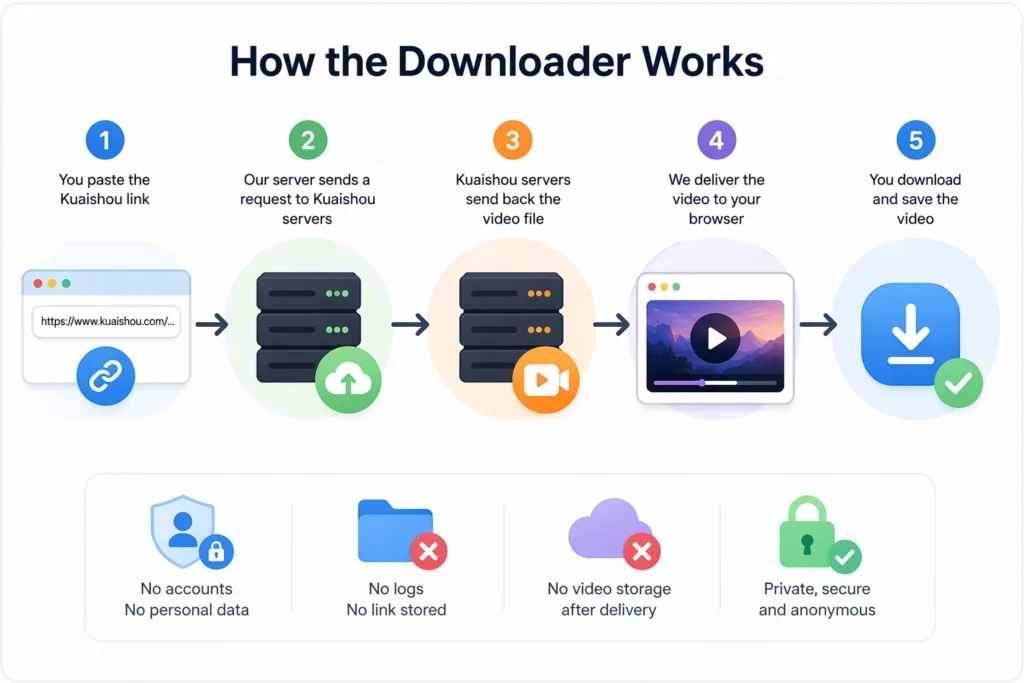
When you paste a Kuaishou or Kwai link into our tool, one thing happens — our server sends a request to Kuaishou’s servers, fetches the video file, and delivers it to your browser. That is the entire process. We are acting as a middleman between you and Kuaishou’s own content delivery system.
We do not store the link you pasted. We do not save the video on our servers after delivery. We do not know who you are, what device you are using, or what video you downloaded. No account means no data. No data means nothing to leak, sell, or misuse.
Does It Affect Your iPhone in Any Way?
No software is being installed on your iPhone during this process. You are using a browser — Safari or Chrome — to visit a webpage and download a file. This is no different from downloading a photo from a website or saving a PDF from an email.
Safari on iPhone runs inside Apple’s own security sandbox, which means no webpage — including ours — can access your contacts, camera, microphone, or any other app on your device without your explicit permission. iOS simply does not allow it.
What About the Kuaishou Video Itself?
The video file you download is a standard MP4 file. It contains video and audio — nothing else. There are no embedded scripts, no trackers, no hidden files inside an MP4 that could affect your iPhone. Your device plays it like any other video in your Photos library.
One thing worth being honest about — we can only deliver what Kuaishou’s servers make available. We do not alter, re-encode, or tamper with the video file in any way. What Kuaishou stores is what lands on your iPhone.
⬩➤ Troubleshooting — Kuaishou Download Problems on iPhone
Something went wrong, and you are not sure why. Before assuming the tool is broken or your iPhone has an issue, check below. For a complete troubleshooting guide, visit: Troubleshooting
Safari Pop-up Appeared and Disappeared — Now I Cannot Find the Download
The quality of your downloaded video is determined entirely by what the original creator uploaded to Kuaishou — not by our tool. We never compress, reduce, or re-encode the video during processing. If the creator uploaded in 720p, the highest option you will see is 720p. There is no way around this.
That said, make sure you actually selected the HD or 4K option when the quality menu appeared. A lot of users tap the first option that appears out of habit, which is often SD. Go back, paste the link again, and this time deliberately select the highest quality option available before downloading.
One more thing — if you are watching the video in the Files app before moving it to Photos, some versions of the Files app preview videos at a lower resolution than the actual file. Move it to Photos first and watch it there. The quality difference is noticeable.
For a complete troubleshooting guide Click Read more→
Frequently Asked Questions
⬩➤ Conclusion:
Downloading Kuaishou and Kwai videos on iPhone is not complicated once you know what iOS actually does with downloaded files. The process has a few more steps than Android — but every one of those steps is straightforward when someone walks you through them properly, which is exactly what this guide did.
To summarize what works: use Safari for the cleanest experience, watch for the download notification at the top of your screen, find your video in the Files app Downloads folder, and use Save Video to move it to your Camera Roll. That is the complete process — nothing more, nothing less.
If you ran into a problem that is not covered in the troubleshooting section above, the fix is almost always one of three things: a wrong link format, a private video, or a Safari cache issue. Try copying the link fresh from the Kuaishou app, clearing Safari’s cache from Settings, and running the download again.
Ready to download? Paste your Kuaishou or Kwai video link into our free tool and get your video in HD quality — no watermark, no account, no app required.[Download Kuaishou Videos Free — Use Our Tool Here]